Editing
Thumbnail View
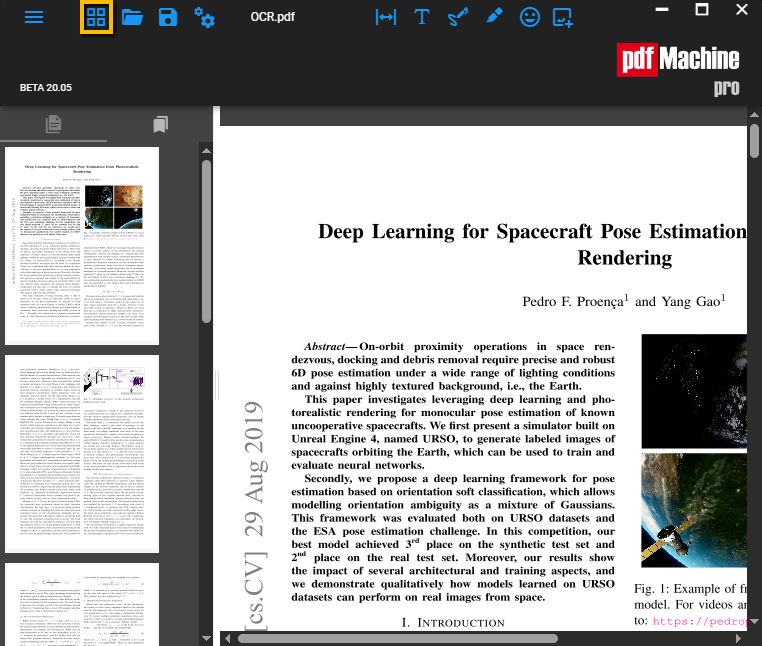
Thumbnail view can be displayed by clicking the thumbnail option in the toolbar. Once selected, thumbnail view will be displayed on the left. Thumbnail images of every page in the document are shown.
Add/Remove/Rearrange Pages
You can rearrange the order of pages by selecting thumbnails and dragging them into the correct
position. You can delete pages by selecting a thumbnail and pressing the delete key. You can insert or append pages using the pages menu. You can split a PDF into multiple PDFs.
Bookmark View
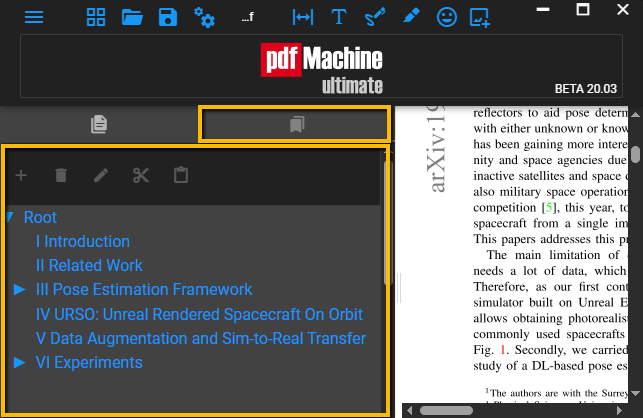
You can move bookmarks around by the "drag and drop" method. Or by using the toolbar to add, delete and change bookmarks.
By default, the bookmark is placed at the top left of the chosen page.
Open File
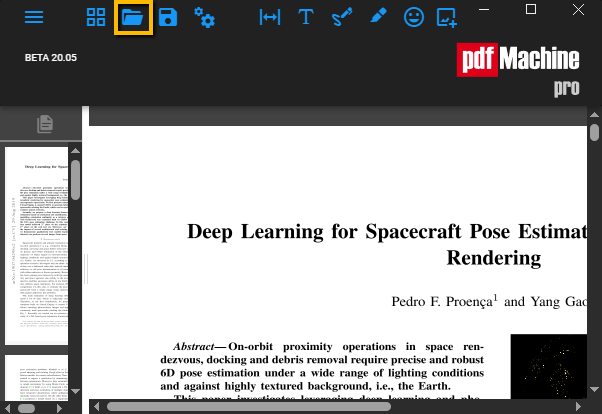
Allows you to open a file from your computer
Save
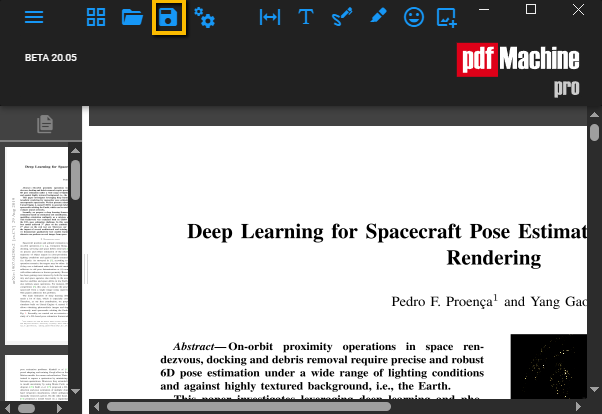
Saves the changes made to the file
Options
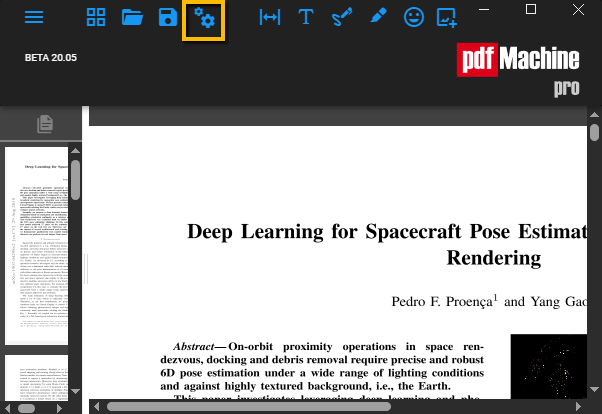
Opens up an options menu
PDF Editing Tools
You can edit the PDF freely with various drawing tools and page tools. These tools include; changing the format of the page, inserting text, free drawing on the page, highlighting, inerting emoji's and/or images. To do so, click on the desired tool in the Editing tools panel at the top right of the page.
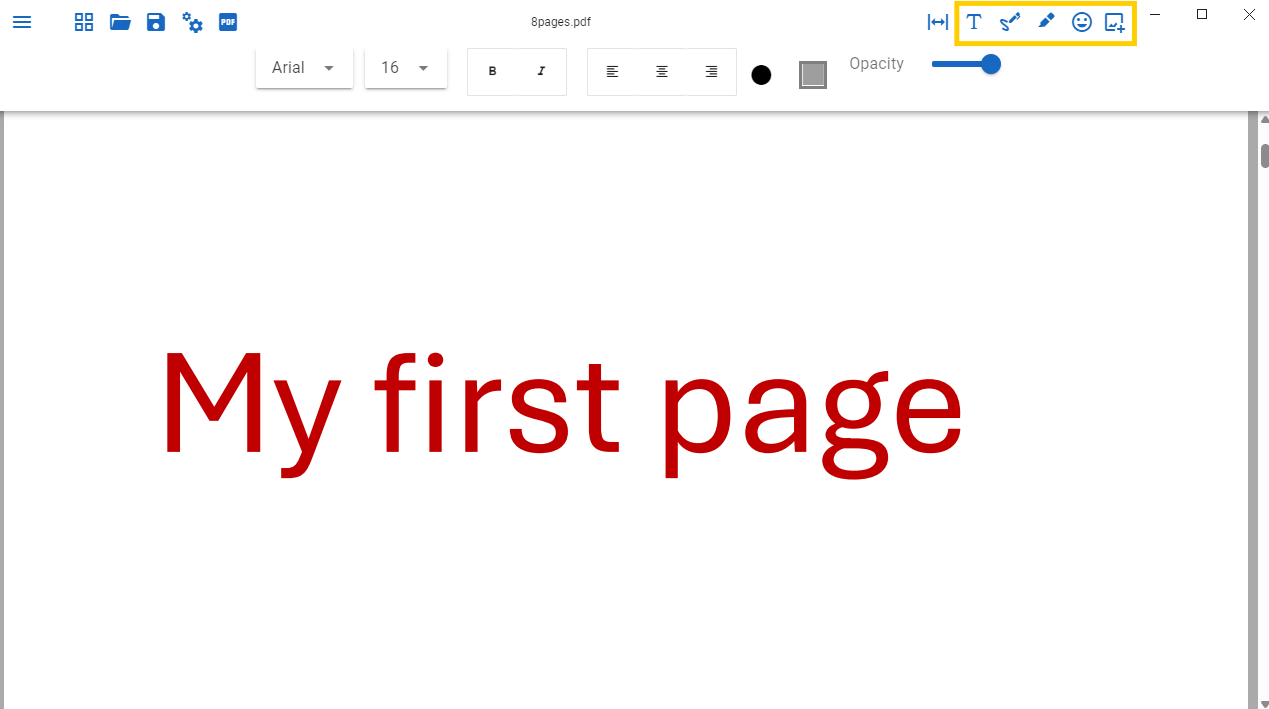
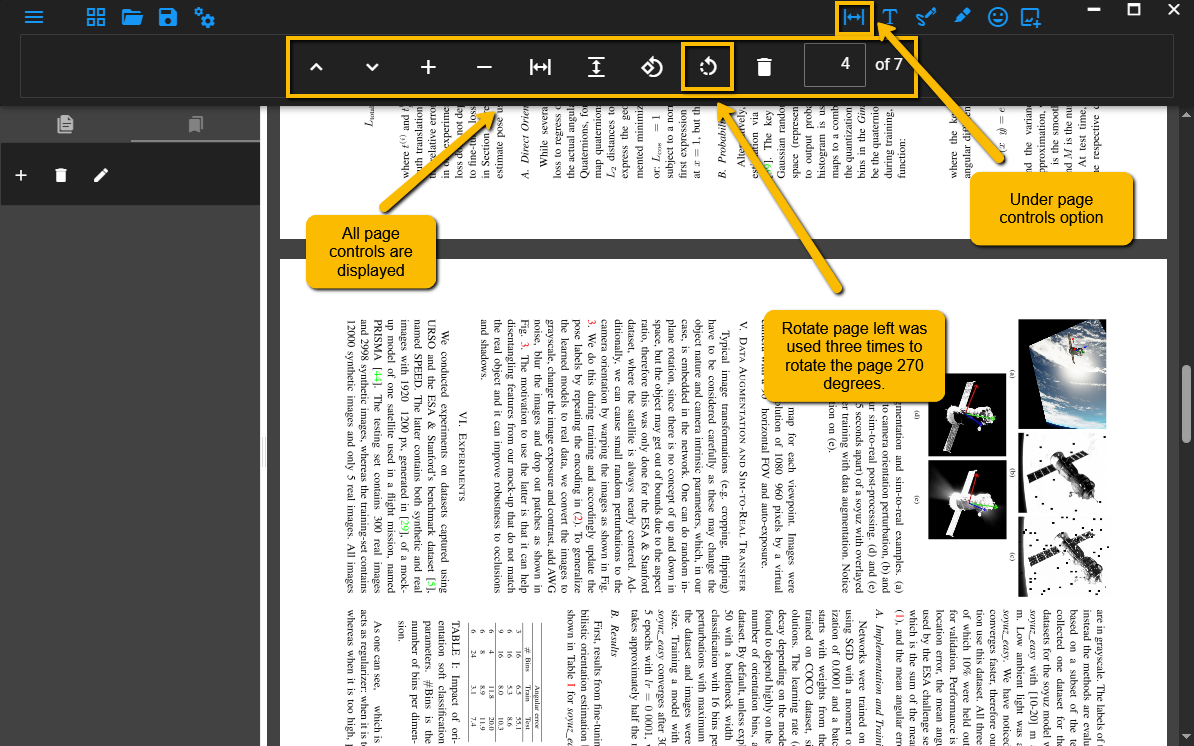
Editing Tools: Page Controls
The page controls button gives you access to a menu of options to change the format of the page. In the below example the PDF has been rotated 270 degrees.
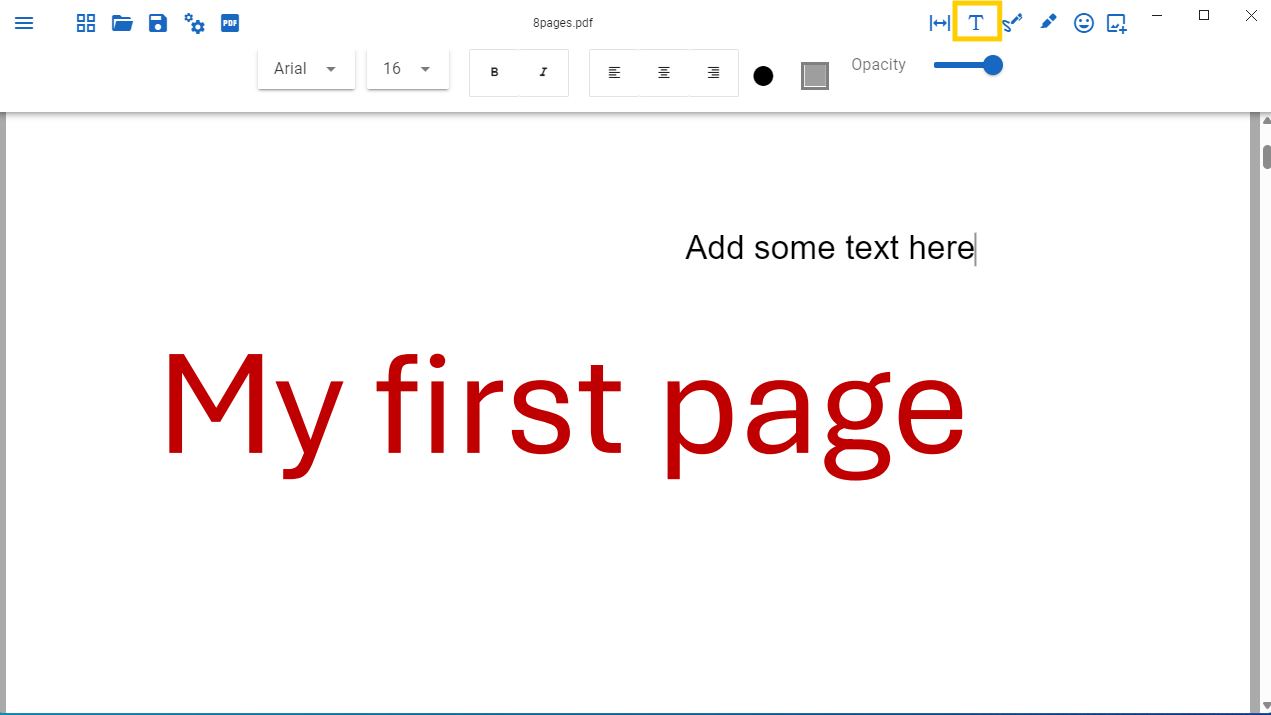
Editing Tools: Insert Text
These are text boxes that can be placed on top of the PDF content. They can be resized and rotated, the opacity and font are also configurable. You can type whatever you desire in the text box.
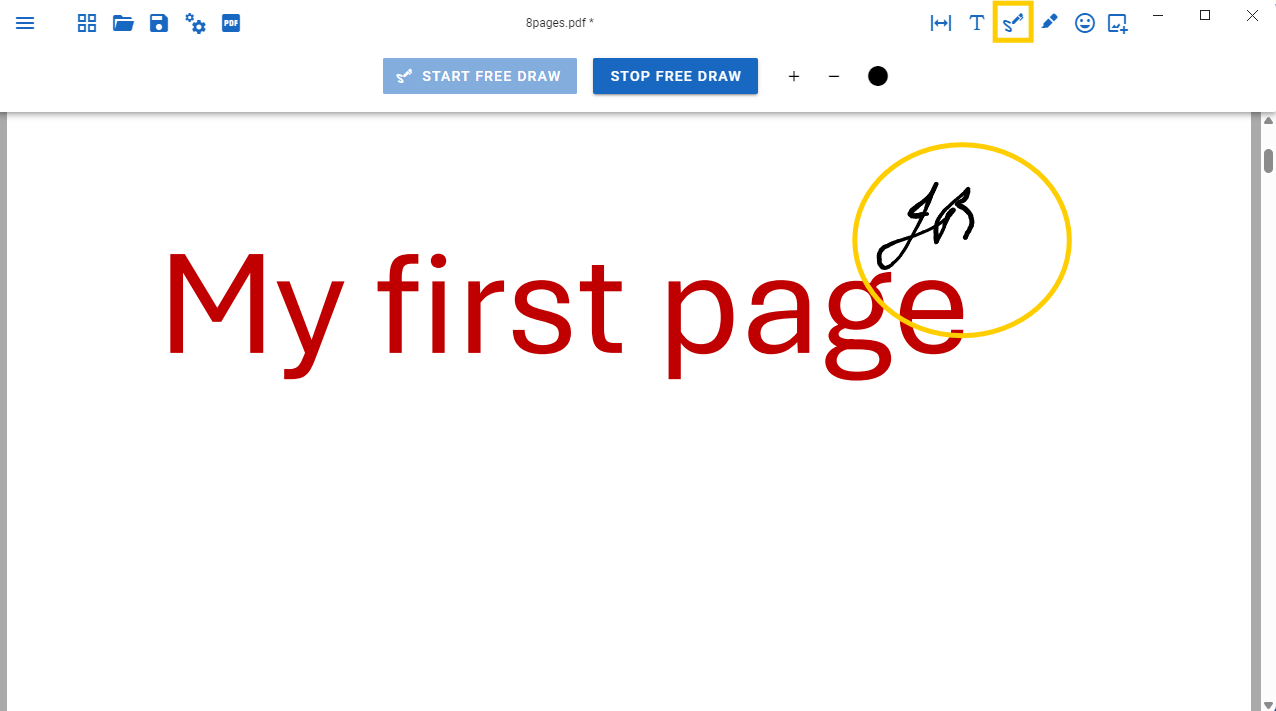
Editing Tools: Signatures and drawings
Selecting this enters you in drawing mode. Hold down left click and drag the mouse to draw.
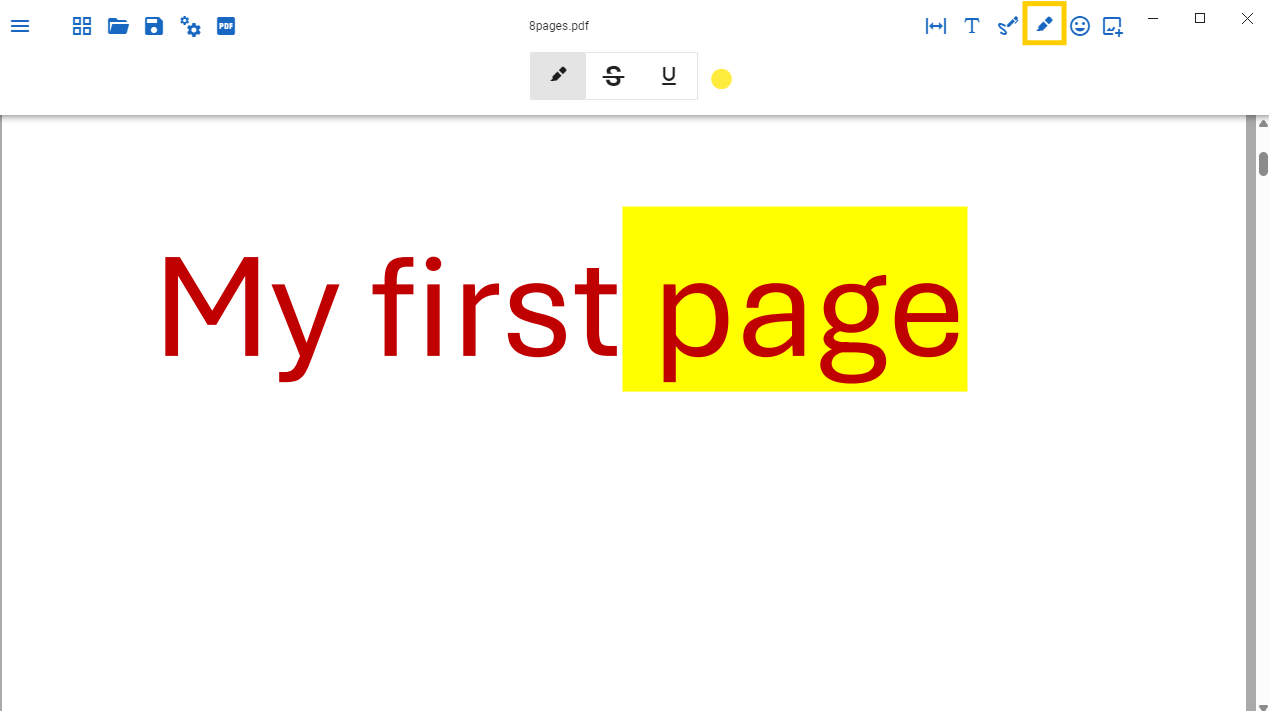
Editing Tools: Text highlights
Selecting this enters you in highlighting mode. Hold down left click and drag the mouse over text to highlight it. You also can choose to cross out text, underscore text or change the colour of the highlights.
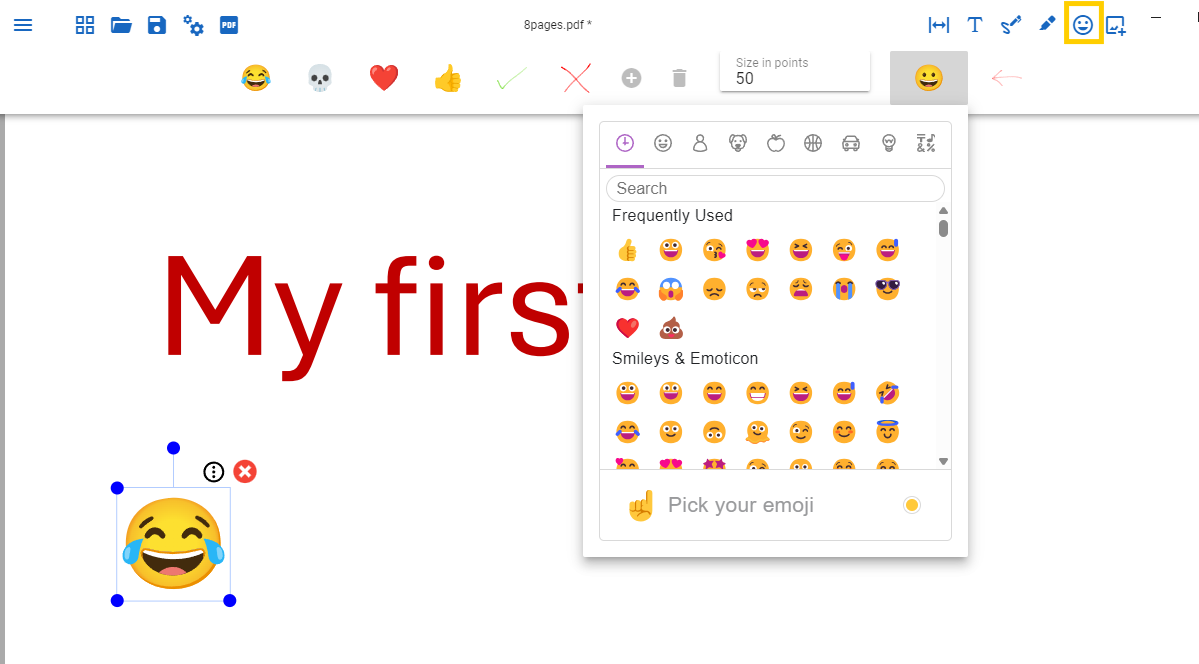
Editing Tools: Emoji
Selecting this allows you to insert an emoji onto the PDF. There is a wide selection of emojis to choose from.
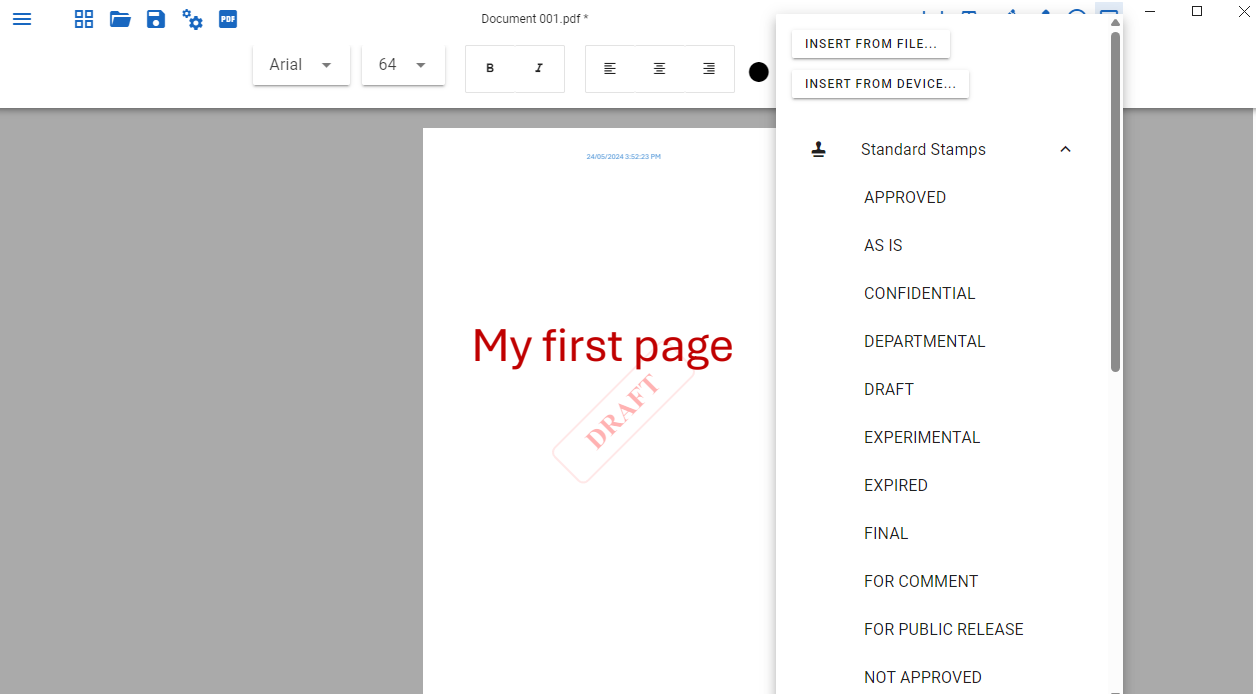
Editing Tools: Insert/AttachFiles
This view allows insertion of images or files for embedding within the PDF. In the below example, an image "draft stamp" from the standard stamps selection was embedded into the file. You use any of the standard stamps, or insert a file from your own device.
Append Menu
| Append PDF | Prompts you to append a PDF file to the end of the document. Read more here. |
| Append Pages from Scanner | Prompts you to scan in pages to be appended to the end of the document. Read more here. |
| Scan - use last settings | Scans the page using the last used settings. Read more here. |
| Convert images to PDF | Prompts user to select images from their computer, them converts them to a PDF. |
Tools Menu
These options have corresponding settings under the pdfMachine options dialog, however unlike the pdfMachine options, these dialogs are only applied to the current PDF in a once off mode.
| Split PDF | Splits PDF into two seperate files. The pages are seperated on the current selected page. |
| Split PDF into many files | Opens a configuration menu to separate PDF into many files. |
| N-Up | Opens a menu to allow you to shrink 'N' number of pages onto one For example if the user chooses '2 up' then the pdf will be converted to display 2 pages of the previous size on every page. |
| Digital Signature | Add a digital signature to the current PDF. For details on digital signatures
click here.
|
| Sign here | TODO
click here.
|
| Run OCR |
Uses optical character recognition to convert scanned images to searchable text.
For details on using OCR within pdfMachine click here.
|
| OCR Language |
Select which language will be used when using OCR to convert images to text.
|
| Add / Remove Printers |
Opens the printer configuration menu to add or remove printers.
|
| Redact |
Enters Redact mode to allow you to permanently remove text and images from the PDF, replacing them with colored blocks.
The information is removed, not just hidden.
Redaction provides a means to protect sensitive or confidential information.
|